
Power-cycle the router, then the printer, then your computer, in that order, and confirm both devices sit on the same network name with the printer on 2.4GHz. That sequence clears most printer connection issues quickly. If discovery still fails afterwards, add the printer by IP address and check the drivers. If the fault keeps returning, the durable fix is a static IP or a wired connection.
TL;DR:
- Most connection issues stem from the printer only supporting 2.4GHz Wi-Fi, while your router may be using band steering to hide that band.
- Manually assigning a static IP or reserved DHCP address on the router prevents recurring offline reports caused by address changes.
- Power-cycling the router, printer, and computer in the correct order often resolves basic connectivity problems without further configuration.
- Adding the printer manually via its IP address and updating drivers are key steps if automatic discovery fails or if the printer drops offline frequently.
- If wireless coverage is weak or unstable, using Ethernet directly or installing a network extender often provides a more reliable connection than troubleshooting wireless settings.
Table of Contents
- Printer won't connect to wifi: the quick checks to run first
- Why 2.4GHz, band steering and WPS trip up wireless printer setup
- How do you add a network printer when it won't show up?
- Router-side fixes: static IP, firewalls and guest network blocks
- How to reset your printer's network settings and read its status report
- When Ethernet or an extender beats another router reset
- How do you confirm the printer connection is properly fixed?
- Ensure printer sharing settings are enabled for network printers
- Do operating system updates affect printer connectivity?
- Could antivirus software be blocking your printer?
- NicoByte's perspective: why printers keep breaking the same way
- Still stuck? When to call in on-site support
- Sources
Printer won't connect to wifi: the quick checks to run first
Before you touch any settings menus, run through this in order. Most "printer won't connect" problems are caused by something trivial that a proper restart clears out, and there's no point chasing driver issues or router settings until you've ruled that out.
Here's the power-cycle sequence that gets the best results, in the right order and with the right timing:
- Unplug the router at the wall and leave it off for a short period to allow it to fully drop its session state.
- Restart the router and wait for all the status lights to settle to normal.
- Power off the printer completely for 10 seconds, ideally from the mains switch rather than just standby.
- Power the printer back on and let it finish its startup cycle before touching anything.
- Restart the computer you're printing from to refresh its network session.
While you're at it, glance at the printer's control panel. A blinking Wi-Fi light usually means it's still searching for a network; a solid light means it's connected. An amber or red light almost always points to a hardware issue, not a network one, so check for paper jams, low ink warnings, or open covers before you assume it's a connectivity problem.
It's also worth checking whether the printer has drifted into sleep mode, which can make it briefly invisible to your network even though nothing is actually wrong. And if you've ever connected the printer by USB in the past, make sure that cable isn't still plugged in during a wireless setup attempt, since some models default back to wired mode automatically when they detect a cable.
Finally, rule out the basics on the network side. Check that your phone or laptop can browse the internet normally (an outage from your ISP will masquerade as a printer fault every time). Then confirm the device you're using to set up the printer is joined to your main home or office network, and not a guest network or one of those temporary "DIRECT-xx-" networks that some printers broadcast for direct pairing.
Move on to the next section if any of these apply: the printer still doesn't show up when you search for it, the printer's own display says it isn't connected, or it connects successfully, but it drops offline again within a day or two.
Why 2.4GHz, band steering and WPS trip up wireless printer setup
A huge number of "wireless printer won't connect" cases come down to one thing: the printer can only see a 2.4GHz signal, and your router is hiding it.
Most affordable and mid-range printers only support the 2.4GHz band, not the faster 5GHz band your laptop or phone might default to. That's fine on its own, except many modern routers use band steering, which automatically merges 2.4GHz and 5GHz under a single network name and quietly pushes devices onto whichever band it thinks is best. Your printer never gets offered the band it actually needs, so it simply can't find a network to join, even though everything looks correctly named and correctly configured.
Two practical ways round this are: splitting the bands temporarily in your router's admin panel to give 2.4GHz and 5GHz separate network names during setup and joining the printer to the 2.4GHz one, or putting your phone or laptop on 2.4GHz while running the manufacturer's setup app.
WPS (Wi-Fi Protected Setup) can be tried if your router supports it, sidestepping password entry. Press the WPS button on the router, then activate WPS on the printer within about two minutes of each other. It's a genuinely quick fix when it works, though it's worth knowing WPS only operates on 2.4GHz and is less secure than a proper WPA2/WPA3 password, so it's best used as a one-off pairing method rather than permanent use.
If the printer still won't join after trying both bands, check for guest network isolation. Many routers put guest networks behind a feature called client isolation, which deliberately stops devices on that network talking to each other, including your printer. If your printer or your computer is accidentally sitting on a guest network, that isolation will block discovery no matter how many times you retry. Move both devices onto the main network and try again.
Last resort for this section: physically carry the printer next to the router and attempt setup from there. Weak printer Wi-Fi radios are extremely common, and if the printer connects fine sitting a metre from the router but fails from its usual spot, you've just proven the fault is coverage, not configuration.
Pro Tip: Keep a note of which band your printer joined during setup. If it reconnects to the wrong band automatically after a router reboot, you'll know where to look next time instead of repeating all diagnostics.
How do you add a network printer when it won't show up?
When the printer simply refuses to appear in your computer's device list, stop waiting for automatic discovery and add it manually instead.
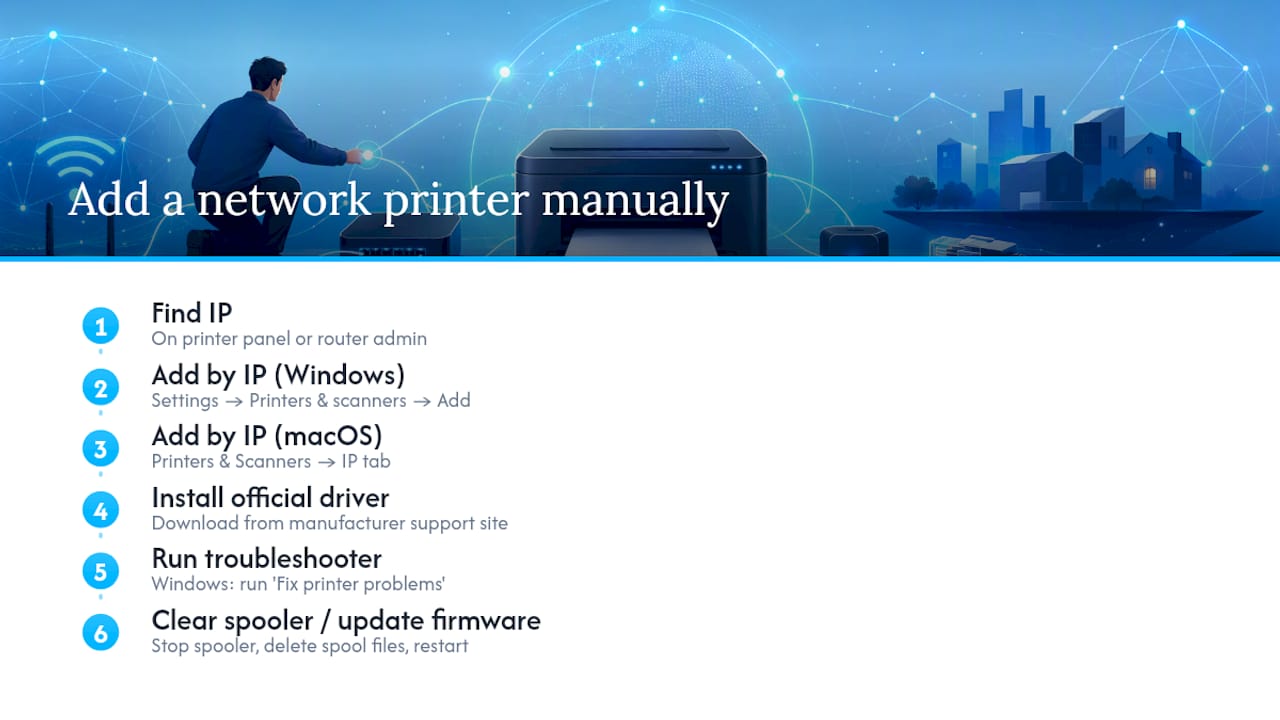
On Windows, go to Settings, then Printers & scanners, and select Add device. If the printer still doesn't appear, choose "The printer that I want isn't listed," then select "Add a printer using a TCP/IP address or hostname." You'll need the printer's IP address, which you can find on the printer's own control panel under network settings, or by checking the connected devices list in your router's admin page.
On macOS, open System Settings, go to Printers & Scanners, click the plus icon, switch to the IP tab, enter the printer's IP address, and select the appropriate protocol, usually IPP.
Once you've got the printer added by IP, a few driver-related steps are worth running through:
Download the official driver package from the manufacturer's support site rather than relying only on the OS-installed drivers, which may support only basic printing and miss features. 2. Run the built-in troubleshooter. On Windows, search for "Fix printer problems" in Settings, which runs an automated check for stuck jobs, driver conflicts, and spooler faults. If print jobs pile up without printing, clear the stuck print spooler by stopping the service, deleting files in the spool folder, and restarting the service, resolving many queue-related issues. Remove and re-add the printer if problems persist; a fresh add-by-IP often clears corrupted profiles. Check for firmware updates on the printer, as outdated firmware may cause intermittent connectivity issues.
Router-side fixes: static IP, firewalls and guest network blocks
If your printer connects but then reports "offline" again after some time, a common cause is DHCP address changes. Your router hands out temporary IP addresses to every device on the network, and when your printer's lease expires and it gets reassigned a different address, your computer keeps trying to reach the old one. The printer looks broken. It isn't. It's just moved.
The fix is to stop the address moving at all:
- Set a DHCP reservation on the router by locating the printer's MAC and assigning a fixed IP, centralising address management.
- Alternatively, set a static IP on the printer through its network settings, picking an address outside the router's DHCP range.
Both approaches permanently fix the address, and once one is in place, "offline" reports caused by address changes stop happening entirely.
If the issue persists, check for firewall rules blocking local traffic, MAC filtering requiring the printer's MAC on the allow list, and client isolation enabled on the main network, disabling each temporarily to test.
A quick router-side checklist worth running through in order: confirm the printer has a reserved IP, confirm firewall rules aren't blocking local traffic, confirm MAC filtering (if enabled) includes the printer, and confirm client isolation is switched off for the network the printer sits on. If you've worked through all four and the printer still won't hold a connection, that's the point to contact your router manufacturer's support line or your ISP, since it may point to a firmware fault on the router itself rather than anything on the printer side.
How to reset your printer's network settings and read its status report
Wiping the printer's network memory and starting fresh often fixes setup issues, especially if it holds onto stale settings from multiple Wi-Fi networks.
Most printers provide a "restore network settings" or "reset Wi-Fi setup" option under network settings menus. Menu wording varies by manufacturer, but it's almost always grouped under network or wireless settings rather than a general factory reset, which you want to avoid unless nothing else has worked.
- Navigate to the network reset option on the printer's control panel and confirm the reset when prompted.
- Run through the wireless setup wizard again from scratch, treating it as a brand new pairing rather than a reconnection.
- Print a network configuration page immediately afterwards, usually found under Settings, then Reports, or Network Status. This single sheet is worth keeping.
The configuration page lists the printer's current IP address, its MAC address, and its firmware version, three details you'll need if you go on to set a DHCP reservation or if you end up calling a support line for help. Write them down or photograph the page rather than relying on memory.
One thing worth knowing before you reset anything: it wipes any saved networks, so if the printer normally hops between a home network and a mobile hotspot, you'll need to rejoin both manually afterwards. It's a small inconvenience for a fix that clears out a genuinely wide range of stubborn connection faults.
When Ethernet or an extender beats another router reset
If power-cycling, band splitting, IP adding, and static addressing haven't fixed intermittent dropouts, the issue is likely radio coverage rather than configuration.
Test by plugging the printer into your router with an Ethernet cable. If printing works reliably, the wireless signal at the printer's location is too weak and software fixes won't help.
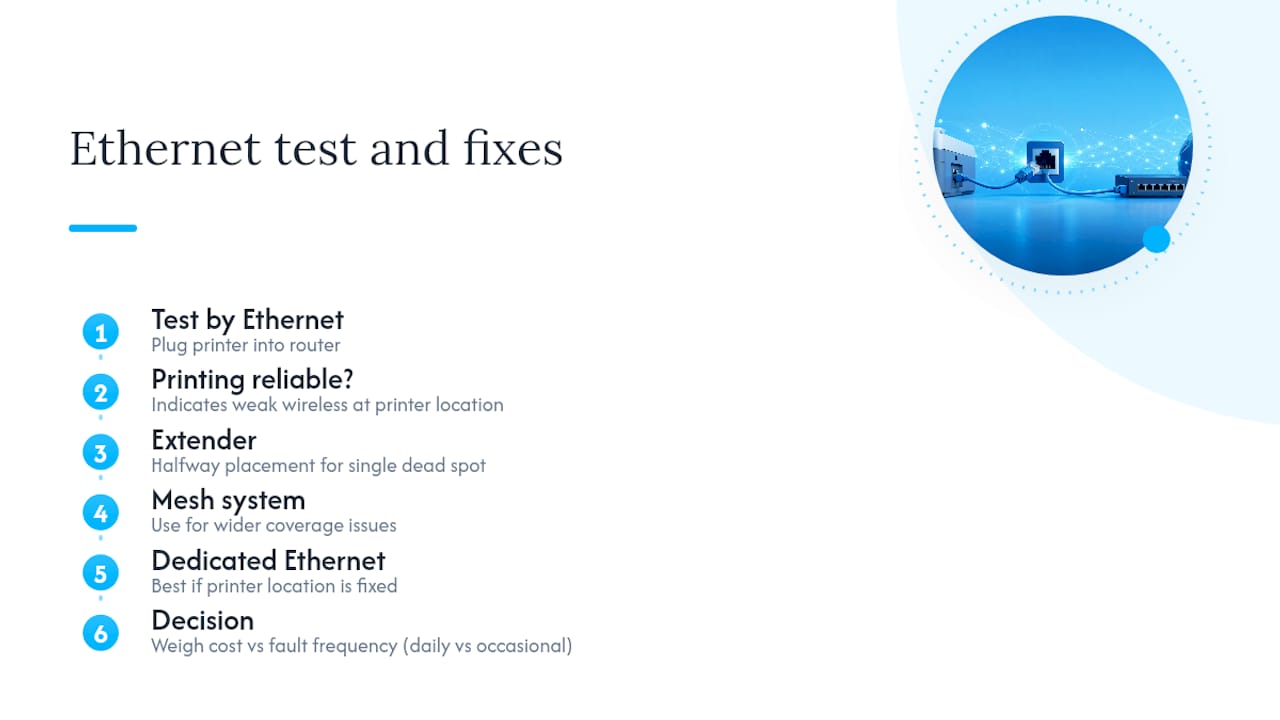
Options include: using a Wi-Fi extender placed halfway between the router and printer for a single dead spot, a mesh system for wider coverage issues, or running a dedicated Ethernet cable for reliable connection if the printer location is fixed.
If the printer is fixed in place, running an Ethernet cable is often a better investment than an extender, as it permanently removes wireless variability.
Weigh the cost against how often the fault actually recurs. An extender or cable run makes sense if you're printing daily and the dropouts are a genuine nuisance. If it's an occasional annoyance on a printer you use twice a month, it may not be worth the outlay, and calling in a technician to properly survey the signal at the point of use will usually save you buying the wrong hardware twice.
How do you confirm the printer connection is properly fixed?
Don't stop at "it printed once." A proper verification check catches the intermittent faults that come straight back within a day.
- Print a test page directly from the printer itself, usually via Settings, then Reports, then Print Test Page. This confirms the printer's own network stack is healthy, independent of any computer.
- Print a test page from Windows or macOS, and ideally from a phone or tablet too if you use one for printing. Testing from more than one device rules out a fault that's specific to a single computer's driver install.
- Ping the printer's IP address from a command prompt or terminal (
pingfollowed by the address from the network status page). A string of successful replies confirms the network path is solid. If ping fails despite a printed status page showing a valid IP, suspect a firewall or client isolation rule blocking that specific traffic type, and revisit the router-side checks. - Check the printer's sleep and energy-saving timers. Some models drop their network connection more aggressively than others when idle, and lengthening the sleep delay can quietly prevent the exact "offline" complaint from returning.
Keep the IP address, MAC address, and firmware version you noted from the status page somewhere sensible. If the fault does recur, that record turns a repeat troubleshooting session into a five-minute check.
Ensure printer sharing settings are enabled for network printers
If a printer connects fine to one computer but other machines on the same network can't see it, the issue usually isn't the network at all. It's the sharing settings on the computer the printer is physically or primarily connected to.
On Windows, printer sharing is controlled through Settings, then Network & Internet, then Advanced sharing settings, where "File and printer sharing" needs to be switched on for the network profile you're using. If this is disabled, the printer might work perfectly for whoever is directly connected to it while remaining completely invisible to everyone else on the same office network.
For a printer shared from a specific computer rather than connected natively to the network, you'll also need to confirm printer sharing is enabled on the printer's own properties page: right click the printer in Settings, then Printer properties, then the Sharing tab, and tick "Share this printer."
On macOS, the equivalent setting sits under System Settings, then General, then Sharing, where "Printer Sharing" needs to be toggled on, alongside selecting which specific printers are shared.
This is worth checking early in a small office setting where multiple staff report the same printer as unreachable, since it points straight at the host computer's settings rather than sending you back into router menus or driver reinstalls that won't actually fix the problem.
Do operating system updates affect printer connectivity?
Yes, and it's one of the most overlooked causes of a printer that suddenly stops connecting after working fine for months. Both Windows and macOS periodically ship updates that touch printing subsystems, sometimes deliberately (security patches to the print spooler) and sometimes as an unintended side effect of a broader driver framework change.
Check Windows Update history under Settings, then Windows Update, then Update history, for anything installed around the date the printer stopped working. If a recent update lines up with the fault appearing, that's a strong clue, and manufacturer support pages often publish specific fixes or updated drivers within days of a major OS update causing widespread issues.
The same applies in reverse: an outdated operating system can occasionally be the actual problem, particularly with older printers whose drivers rely on OS features that get deprecated over time. Running the OS's own troubleshooter, alongside checking the manufacturer's site for an updated driver that explicitly mentions compatibility with your current OS version, covers both directions of this issue.
Small offices running several computers on different update schedules sometimes find one machine prints fine while another, running an older build, can't see the printer at all. Keeping systems on a consistent, current update schedule avoids this mismatch entirely, and it's one of the simpler maintenance habits that prevents connectivity complaints from resurfacing every few months.
Could antivirus software be blocking your printer?
Security software occasionally causes exactly the kind of connection failure this whole guide is written to solve, and it's easy to overlook because the antivirus rarely announces that it's the culprit.
Many antivirus suites include their own firewall component, separate from the Windows or macOS built-in firewall, and these sometimes apply stricter rules to local network traffic than the OS default. If a printer worked fine before installing or updating a security suite and stopped shortly afterwards, that timing is a strong hint.
The quickest diagnostic is to temporarily disable the antivirus firewall component (not the whole antivirus, just the firewall layer) and try printing again. If it works, you've confirmed the cause, and the fix is to add a specific exception for printer communication ports rather than leaving the firewall off permanently. Most antivirus products have a dedicated "trusted network" or "allowed devices" setting for exactly this situation.
It's also worth checking whether the antivirus has flagged the printer's own setup or discovery software during installation, since some suites quarantine bundled utilities that come with printer driver packages, mistaking them for unwanted background processes. A quick look through the antivirus's quarantine or blocked-items log will confirm whether that's happened.
This is a low-probability cause compared with band mismatches or DHCP churn, but it's worth ruling out before assuming a hardware fault, particularly on business laptops running managed security software you didn't configure yourself.
NicoByte's perspective: why printers keep breaking the same way
Printers get treated like phones when they should be treated like light fittings. A phone moves around, switches networks constantly, and is built with strong wireless hardware to cope with that. A printer sits in one spot for years, usually with a weaker radio, and yet most households and small offices still let it grab a DHCP address like any other gadget and hope for the best.
That mismatch is the root cause behind most repeat callouts. Give a printer a fixed address once, whether through a router reservation or Ethernet, and the "offline" complaints that come from address churn simply stop happening. It's not a workaround. It's how a device that never moves should have been configured from day one.
A short monthly habit prevents most of the recurring cases we see: reserve the printer's IP if you haven't already, check the manufacturer's site for a driver or firmware update, and keep a note of the network credentials somewhere you can actually find them later. None of that takes more than five minutes, and it turns a printer from a recurring nuisance into something you genuinely forget about.
— NicoByte
Still stuck? When to call in on-site support
Some printer faults genuinely need someone stood in the room, particularly when a router's admin panel is a mess of unfamiliar settings or the property has coverage gaps that need proper testing rather than guesswork. That's where Nicobytesolutions comes in for readers across Bolton, Manchester, and Lancashire: fixed pricing agreed before any work starts, and a no-fix no-fee policy, so a stubborn printer never turns into an open-ended bill.

Typical jobs range from a single visit to reconnect a printer and set up a proper DHCP reservation, through to a full network survey and extender or Ethernet installation for an office where signal simply doesn't reach the printer's usual spot. Both come with the same fixed-price approach and the same no-jargon explanation of what was actually wrong, so you're not left guessing whether the fix will hold.
If you've worked through the checks above and the printer still won't behave, or you'd simply rather have someone else sort it, book a visit with NicoByte Solutions and get it resolved properly the first time.